How to Quickly Batch Convert Units in CSV or Excel Columns Using AI Tools
If you’ve ever worked with CSV or Excel files, you’ve probably run into this situation: the data itself is correct, but the units are inconsistent or don’t match the requirements of your current analysis.
For example, a column may use milliliters (ml), while your analysis model or report requires liters (L). Or historical data and newly generated data may use different units. In the past, this usually meant writing formulas, copying entire columns, and repeatedly checking for mistakes.
Now, with our AI data analysis tool, this kind of task can be solved in a single sentence: import the file, describe what you want, and let the AI handle the rest.
Example CSV File (Original Data)
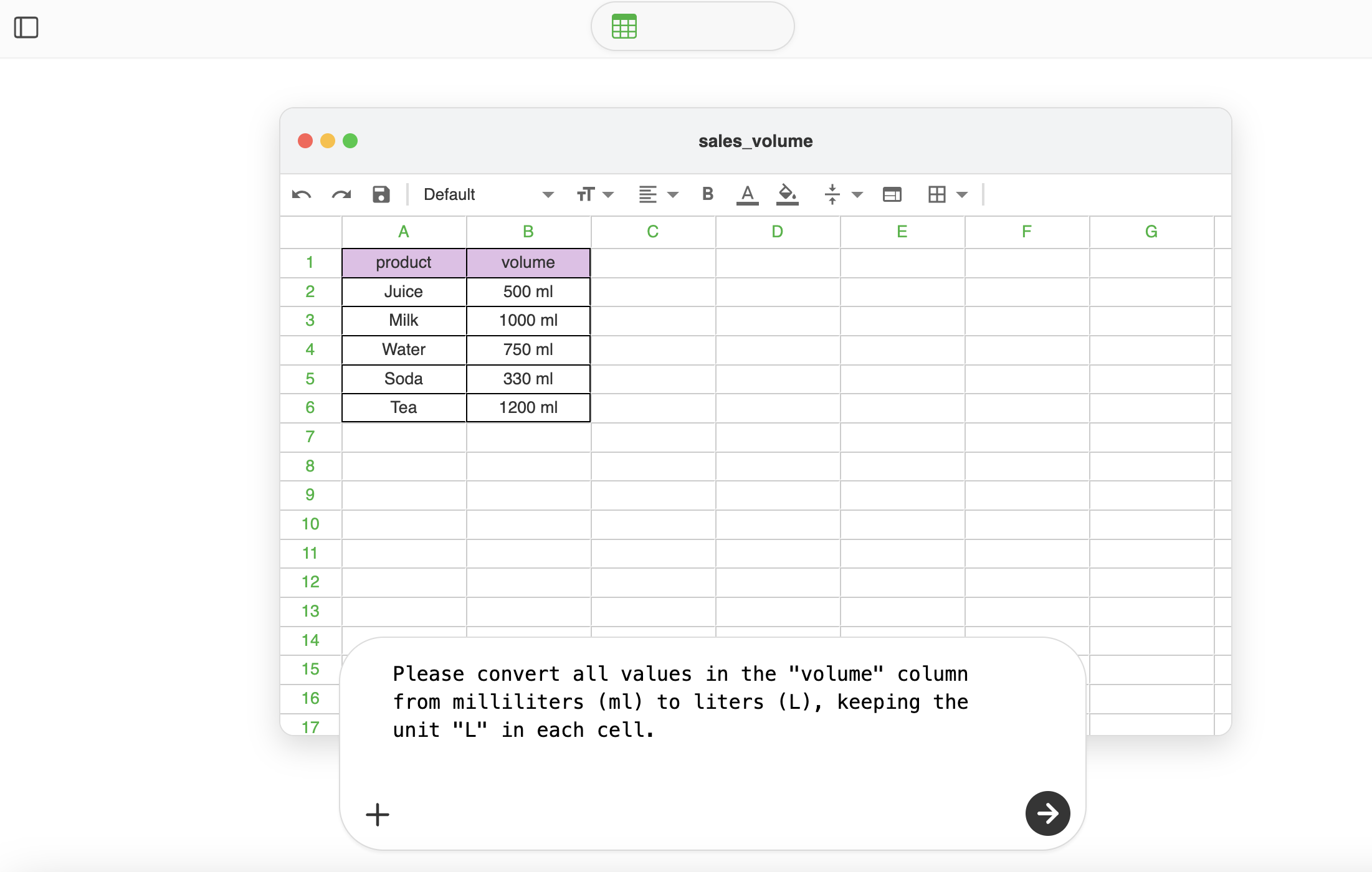
| product | volume |
|---|---|
| Juice | 500 ml |
| Milk | 1000 ml |
| Water | 750 ml |
| Soda | 330 ml |
| Tea | 1200 ml |
In this example, each cell in the volume column contains both a numeric value and a unit (ml). The goal is to convert them all to liters (L) while ensuring that each cell still clearly includes the unit.
Batch Conversion with an AI Tool
The entire process requires no formulas and no scripting knowledge. You simply describe the result you want:
- Import the CSV or Excel file.
- Enter the following prompt in the input box:
Convert the values in the volume column from milliliters (ml) to liters (L), and keep the unit L in each cell. SheetAI will automatically:Identify the numeric values and their units. Apply the correct unit conversion, Generate a new result column with a clean, consistent format
SheetAI Result
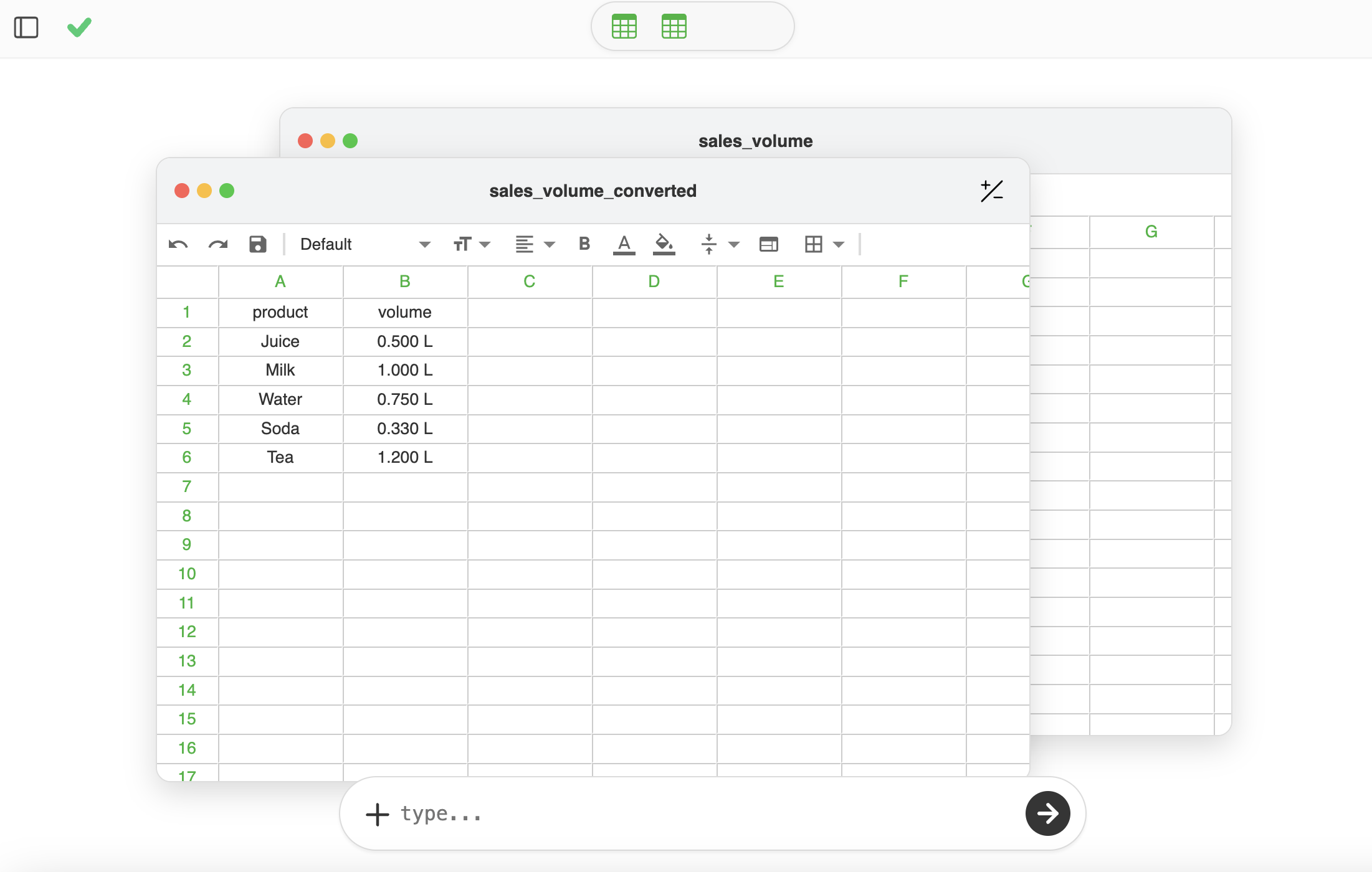
| product | volume | volume_L |
|---|---|---|
| Juice | 500 ml | 0.5 L |
| Milk | 1000 ml | 1 L |
| Water | 750 ml | 0.75 L |
| Soda | 330 ml | 0.33 L |
| Tea | 1200 ml | 1.2 L |
You can choose to keep the original column or replace it with the SheetAI result. The entire process remains fully transparent and under your control.