How to Batch Merge Multiple CSV Files and Automatically Add Date Columns
In daily data analysis and operations work, a common scenario is that a CSV file with the same structure is generated every month. On a quarterly or yearly basis, these files need to be batch merged into a single master table, with additional helper columns (such as month or data source) added during the merge for further analysis.
Before getting started, here’s a simple but very practical trick that many people overlook: in the file selection dialog, you can directly select multiple files, or hold Shift or Command (Mac) / Ctrl (Windows) to batch-select multiple monthly CSV files and import them at once. This can significantly improve efficiency when working with a large number of files.
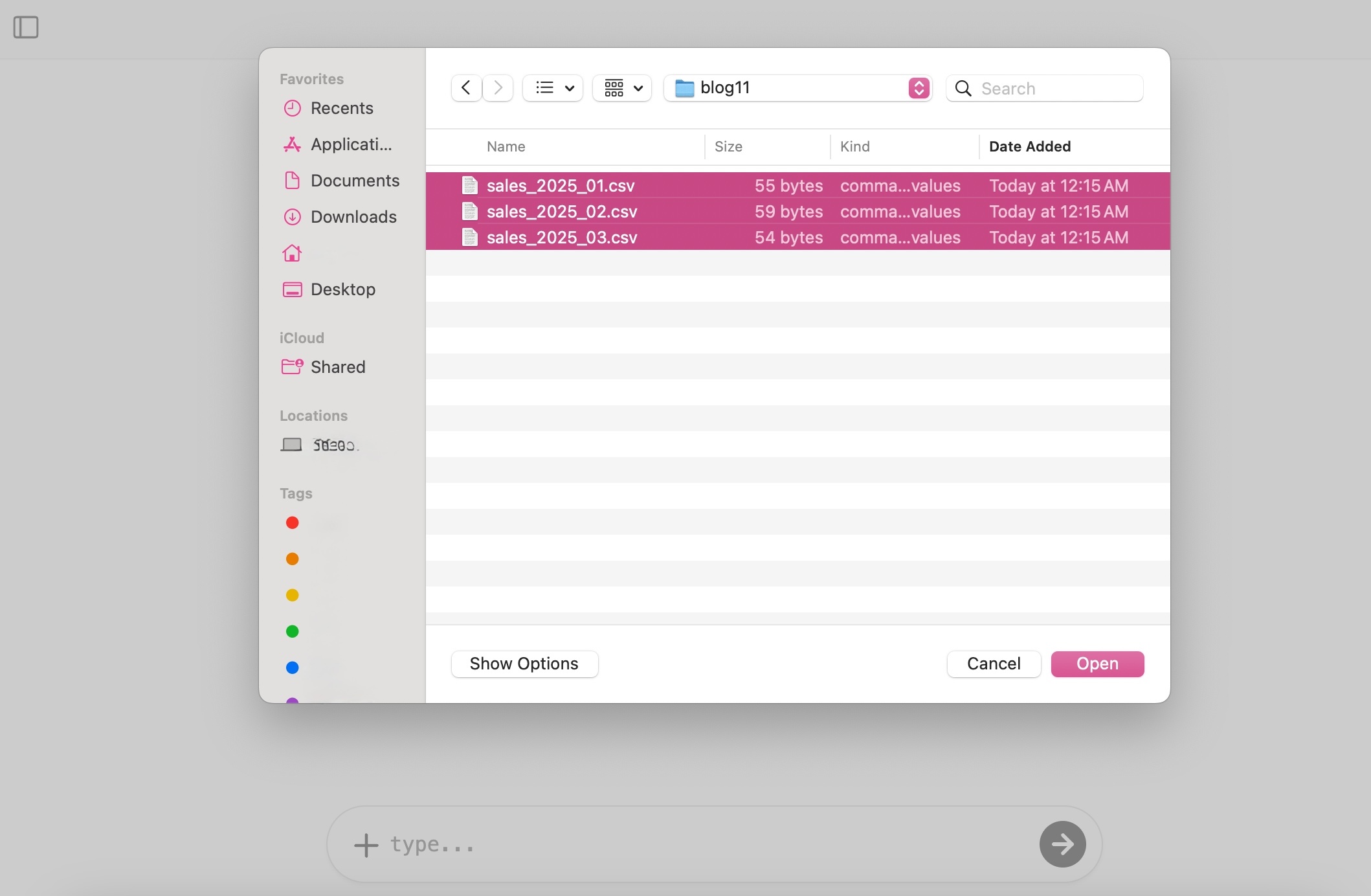
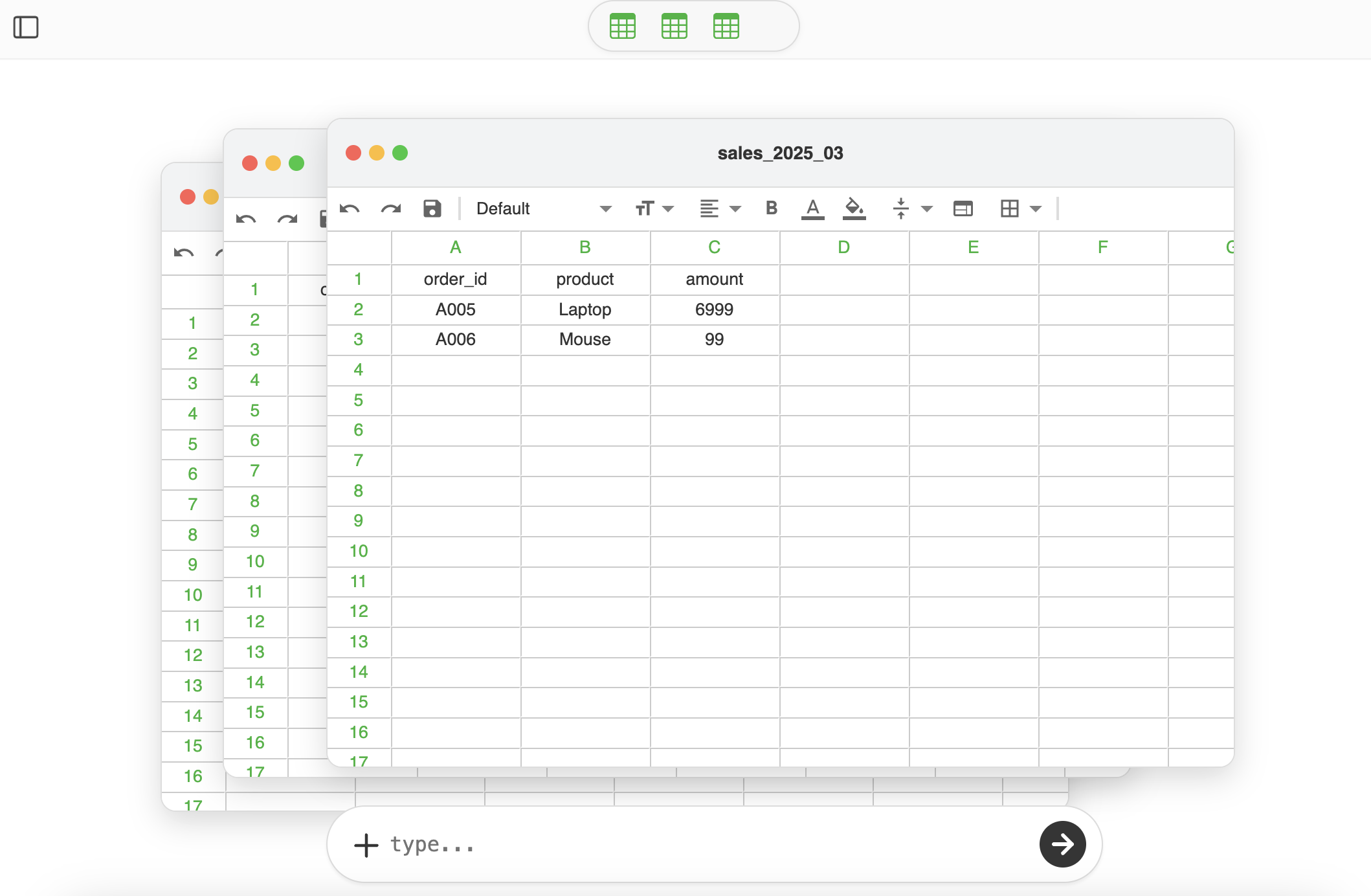
Note: Only CSV files support selecting multiple files at once. If you want to import multiple XLSX or PDF files, you still need to select them one by one.
Below, we’ll walk through a complete example to show how you can use our data analysis software to efficiently batch merge multiple CSV files.
Example Scenario: Merging Three Months of Sales Data
Assume we have three monthly sales data files: sales_2025_01.csv, sales_2025_02.csv, and sales_2025_03.csv. All of them share the same table structure.
January 2025 Data (sales_2025_01.csv)
| order_id | product | amount |
|---|---|---|
| A001 | Keyboard | 399 |
| A002 | Mouse | 99 |
February 2025 Data (sales_2025_02.csv)
| order_id | product | amount |
|---|---|---|
| A003 | Monitor | 1299 |
| A004 | Keyboard | 399 |
The goal is to batch merge these monthly CSV files into a single file, and add a new column—for example, month—to indicate the source month of each row.
Batch Merging with Our Software
With our software, you simply need to select all three CSV files at once during the file import step. You can then describe your intent directly, such as:
Merge all tables by appending rows (Append / Union). Generate a new month column based on the file name.
The entire process requires no manual scripting and no copy-pasting between spreadsheets, making it especially suitable for recurring monthly or periodic data processing tasks.
Merged Result Example (merged_sales.csv)
| order_id | product | amount | month |
|---|---|---|---|
| A001 | Keyboard | 399 | 2025-01 |
| A002 | Mouse | 99 | 2025-01 |
| A003 | Monitor | 1299 | 2025-02 |
| A004 | Keyboard | 399 | 2025-02 |
| A005 | Laptop | 6999 | 2025-03 |
| A006 | Mouse | 99 | 2025-03 |
More Batch Merge Use Cases
In real-world scenarios, there are many similar batch merge requirements, such as:
- Merging CSV files from different regions and adding a
regioncolumn - Automatically tagging data based on file source or folder
- Combining historical datasets with newly generated data for trend analysis
By leveraging batch file import and a unified data processing workflow, all of these tasks can be completed within a single analysis pipeline, significantly reducing manual effort and the risk of errors.
If you frequently work with multiple CSV, Excel, or similarly structured data files, batch merging combined with automatic column generation is often the first workflow worth optimizing.